The Wishlist Department Open yours

The Wishlist Department

How it works

One link for the whole family’s wishlists. No spoilers, no doubled-up gifts.

Everyone adds what they’re wishing for. Family browse the lists and call dibs on what they’re buying, so nobody buys the same thing twice. It works for birthdays, Christmas, Hanukkah, Mother’s Day, Father’s Day, baby showers, anniversaries or any date your family adds. It all runs in the browser on any phone, tablet or computer, so there’s nothing to download and no account to make.

Which link did you get?

The family link

Browsing and calling dibs

  1. Sign in

    The first time you open the family link on a phone or computer, you’ll see a sign-in screen and nothing else, so a forwarded link never shows anyone’s list. Tap your name, then make up a code (at least 4 letters or numbers) and type it again to save it. That device remembers you from then on, and opens whichever link you tapped. On another phone or computer, tap your name and type the same code. Not on the list? Tap My name isn’t here and type your name, and the organizer sees it in the workshop. Opening your own My list link signs you in too.

  2. Tap a name

    The family link opens on everyone’s lists. The two strips at the top count down to the next two occasions. Under them, Who still needs something shows how many of each person’s wishes are still up for grabs, and gives a heads-up when their birthday or anniversary is a week or less away. Tap Shop to open their list.

  3. Call dibs on what you’re buying

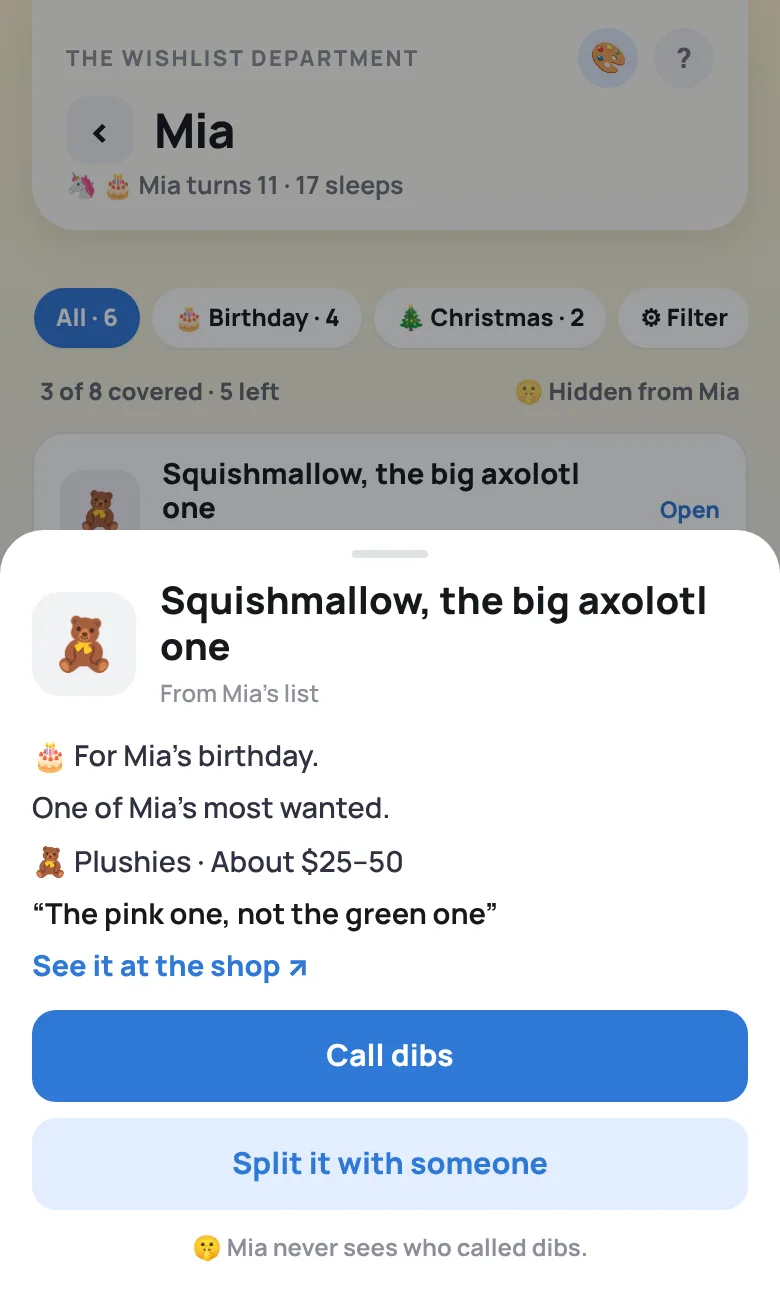
    Tap a wish to see everything about it, then tap Call dibs. If you’ve told this device who you are, it already knows your name. If not, type it once. Everyone else in the family sees who called it, so nobody doubles up.

  4. Changed your mind?

    Tap the wish again and tap Undo. It works on any device you’ve told who you are, or on the device you called dibs from.

  5. Nothing gets spoiled

    The person whose list it is never sees whether anyone called dibs, split it or chipped in. If they open their own list from the family link, it takes them to their “My list” page, which looks exactly the same either way.

  6. Shop by budget

    Wishes can have a rough price range. Tap Filter at the top of a list to see only what fits, like Under $25. On a list with wishes for more than one occasion, the chips next to it show one occasion at a time.

  7. Go in on a big gift together

    Tap a wish, then Split it with someone, and tick who you’d like to ask. They get a “chip in” card at the top of the family page. Anyone can also tap Chip in on a group gift. Kids under 16 are never asked.

  8. Plan it in the group chat

    Everyone chipping in gets a private chat for that gift, with “typing…” and new messages as they arrive. A card on the family page shows the newest message, so you don’t have to hunt for it. The person the gift is for never sees any of it. Tap I bought it once it’s sorted.

  9. Sign the guestbook

    At the bottom of each list, tap Sign the guestbook, pick an emoji and leave a note, so they know you stopped by. You can take your own signature off any time.

  10. After the big day

    Anything someone called dibs on moves to the Gifted shelf once the occasion it was for has passed. A birthday wish moves after that person’s own birthday, not anyone else’s. Wishes nobody bought stay on the list for next time.
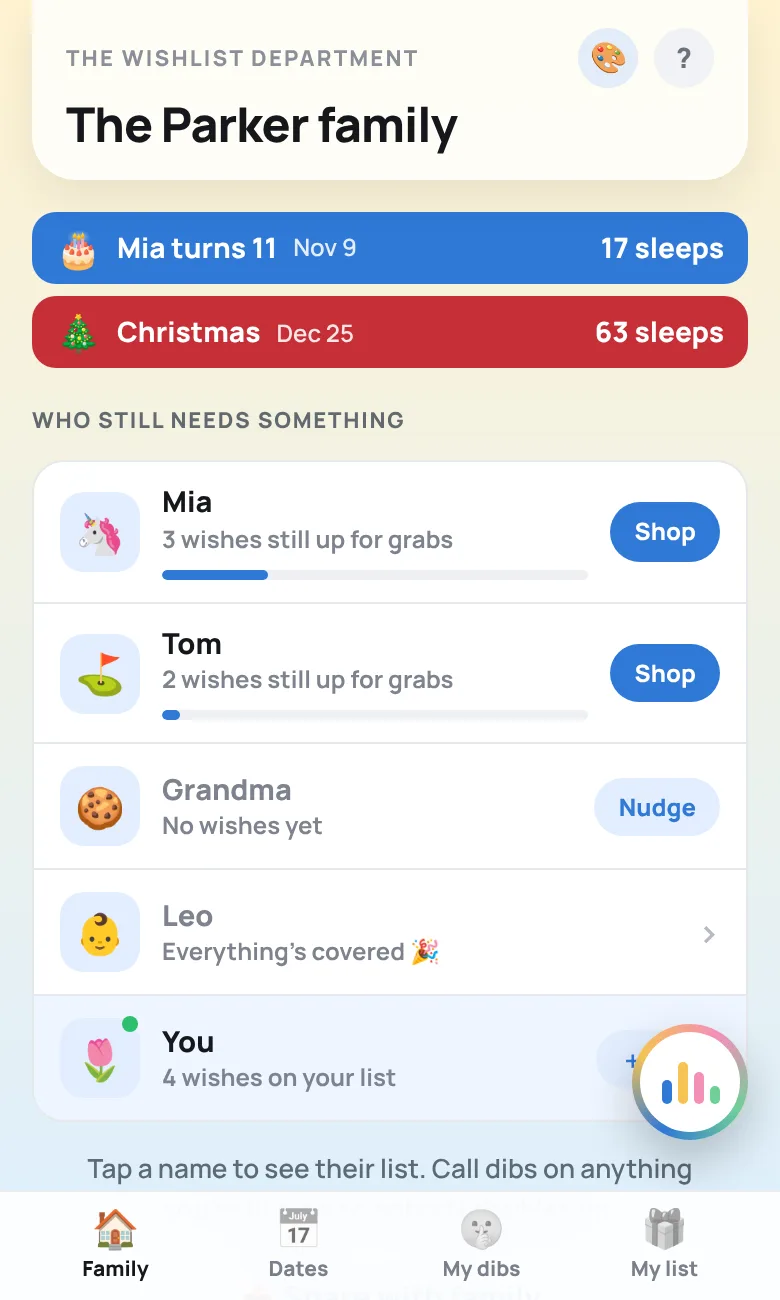
The family link: two countdown strips for Mia's birthday and Christmas, then Who still needs something, with how many wishes are still up for grabs for each person
Everyone’s lists
One of Mia's wishes opened from her list, with the details in plain sentences and a big Call dibs button
Tap Call dibs

💡 The line under each person’s name shows their next occasion, so you know what’s coming. Not on the list yet? Ask whoever set up the department to add you.

↑ Which link did you get?

The family link

My Dibs: your gift list

  1. Tap My Dibs

    It’s the My dibs tab along the bottom of the screen, next to Family and Dates. It shows everything you’ve called dibs on or are chipping in on, from every list, grouped by person.

  2. Buy it

    Each wish has its occasion, price range and a Buy it ↗ link to the store, so you don’t have to go back through every list.

  3. Tick it off

    Tap Mark bought once it’s sorted. The bar at the top shows how many you’ve bought and how many are left.

  4. Group gifts too

    Gifts you’re chipping in on show who else is in, with a Group chat button for that gift. Tap I bought it in the chat once it’s sorted.

  5. On every device

    Only you can see it. Once you’ve told a device who you are, your dibs follow you there, so you can call dibs on your phone and shop on your computer.
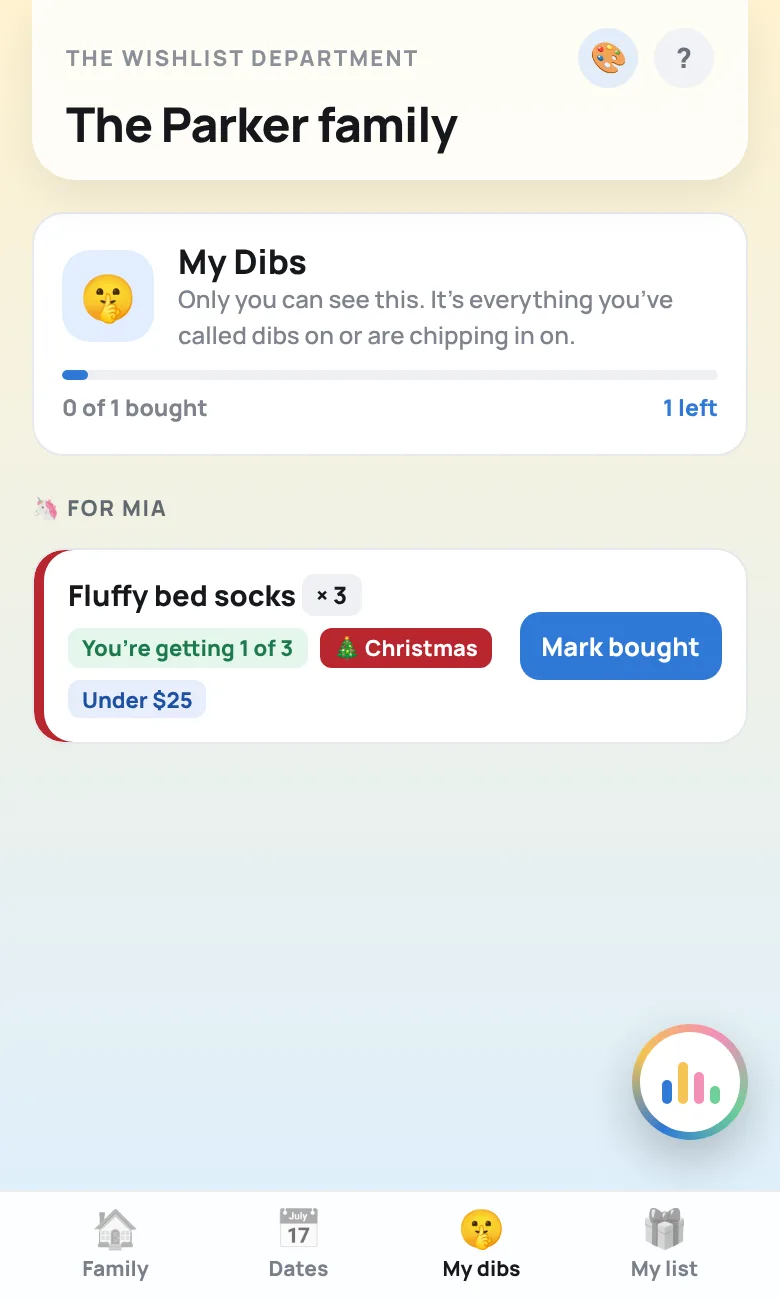
The My Dibs tab: a progress bar showing 0 of 3 bought, then each wish grouped by person with a Mark bought button
Everything you’re buying
↑ Which link did you get?

A “My list” link

Adding your wishes

  1. Tap + Add a wish

    Type what you’re wishing for and add a link from any store if you have one. Pick which occasion it’s for. It starts on your birthday, so only change it for something like Christmas. Then pick how much you want it, from Would be nice to Most wanted. Tap + Notes, how many, price and what kind of thing for the extras, like size, color, “the exact one” or a rough price that helps people shop by budget.

  2. Getting around

    Use the tabs along the bottom to get to the family page, Dates and My dibs. My list always brings you back here. If this device is set up as someone else, you’ll see Is this your list? Tap Yes to switch so you get your own invites and dibs. Parents adding to a little one’s list can tap No, just adding to it.

  3. Edit or remove any time

    Tap any of your wishes to edit it or take it off your list. Once you remove something, family stop seeing it straight away.

  4. Decorate your list

    Tap 🎨 at the top and pick a theme, like Beach day or Dino stomp. Everyone who opens your list sees it. Tap ✨ at the top of the sheet to go back to your usual look.

  5. No peeking

    This page never shows whether anyone called dibs, split a gift or chipped in, so your surprises stay surprises.

  6. Your guestbook

    When family sign your guestbook, their names and notes show up on this page. Tap Remove on any you’d rather not keep.

  7. Pick a code

    If you don’t have one yet, a Pick a code card shows at the top. It keeps your name yours on the family link, and it’s how you get your list back on a new device.

  8. Keep it to yourself

    This link is the key to your list, so don’t post it in the group chat. Send the family link there instead.

  9. Save it to your home screen
    • iPhone: in Safari, tap the share button, then Add to Home Screen.
    • Android: in Chrome, tap ⋮, then Add to Home screen.
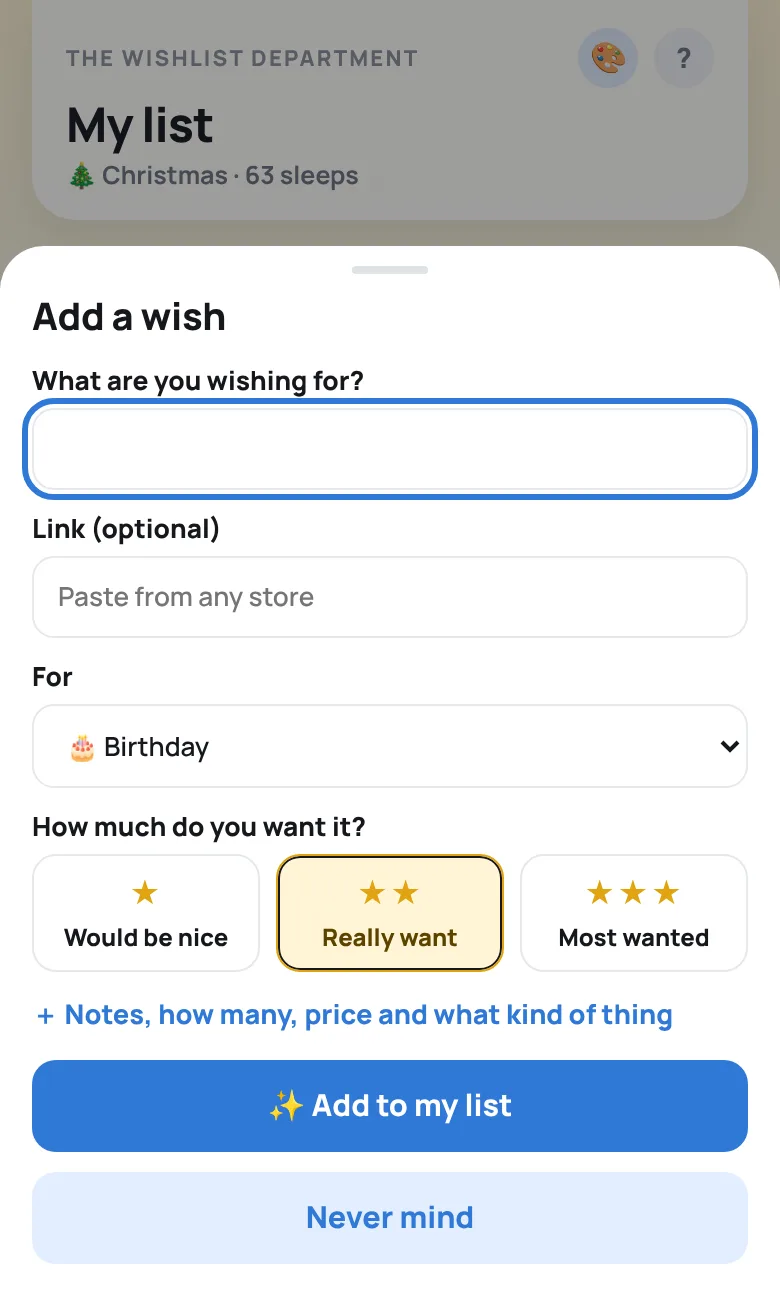
The Add a wish form on a My list page: what you're wishing for, a link, which occasion and how much you want it
“My list”: add your wishes

🎅 Doing Secret Santa? Once names are drawn, your pick shows up on this page, and only you can see it.

↑ Which link did you get?

Decorations

The 🎨 button

The department dresses up for whatever’s coming next, like snow for Christmas or balloons for a birthday. Tap 🎨 at the top of any page to pick something else. There are occasion themes plus just-for-fun ones: Under the sea, Outer space, Garden party, Dino stomp, Sweet shop, Beach day, Autumn leaves, Rainy day and Disco.

On your “My list” page

It decorates your own list, and everyone who opens your list sees your pick.

On the organizer’s device

It sets the look for the whole family. Anyone who picked their own look keeps it, and so does any list with its own decorations.

Anywhere else

It changes the look on your device only, on the family page and on your own list (unless you’ve decorated your list). Tap ✨ at the top of the sheet to go back.
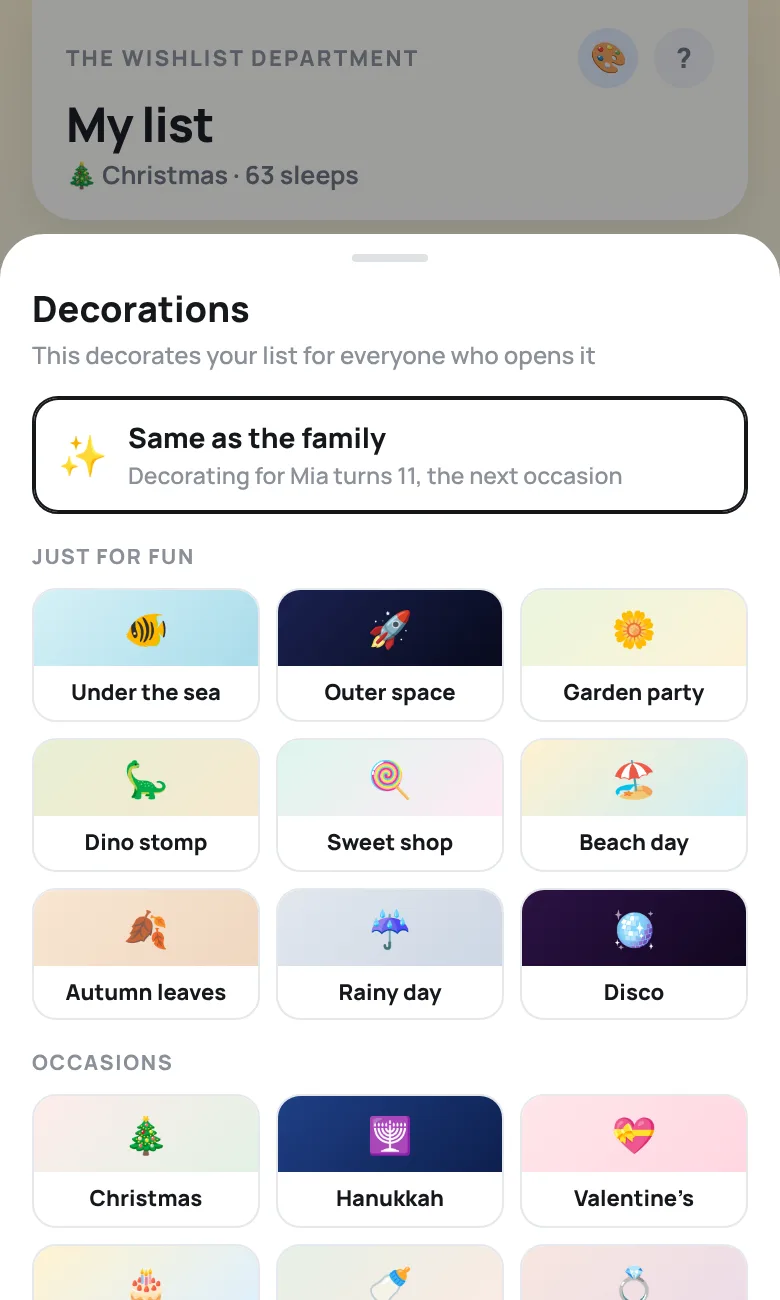
The Decorations sheet with just-for-fun themes and occasion themes to pick from
Pick a theme
↑ Which link did you get?

A guest link

Bringing a gift

Guest links are for people outside the family, so they can go on a baby shower invite, a party invite or a message to friends. A guest link shows just one person’s list.

  1. Say who’s visiting

    Type your name to see the list. The list stays hidden until you do. Your name never shows to other guests.

  2. Pick something from the list

    Tap a wish to see its notes, like size or color, and tap See it at the shop to open the store link.

  3. Call dibs on it

    Tap Call dibs on that wish. Other guests see it as unavailable, and the family sees your name, so nobody brings the same thing.

  4. Changed your mind?

    Tap the wish again and tap Undo, from the same device you called dibs on.

  5. It stays a surprise

    The person the list is for never sees who called dibs, and other guests only see that a gift is taken, not who’s bringing it.
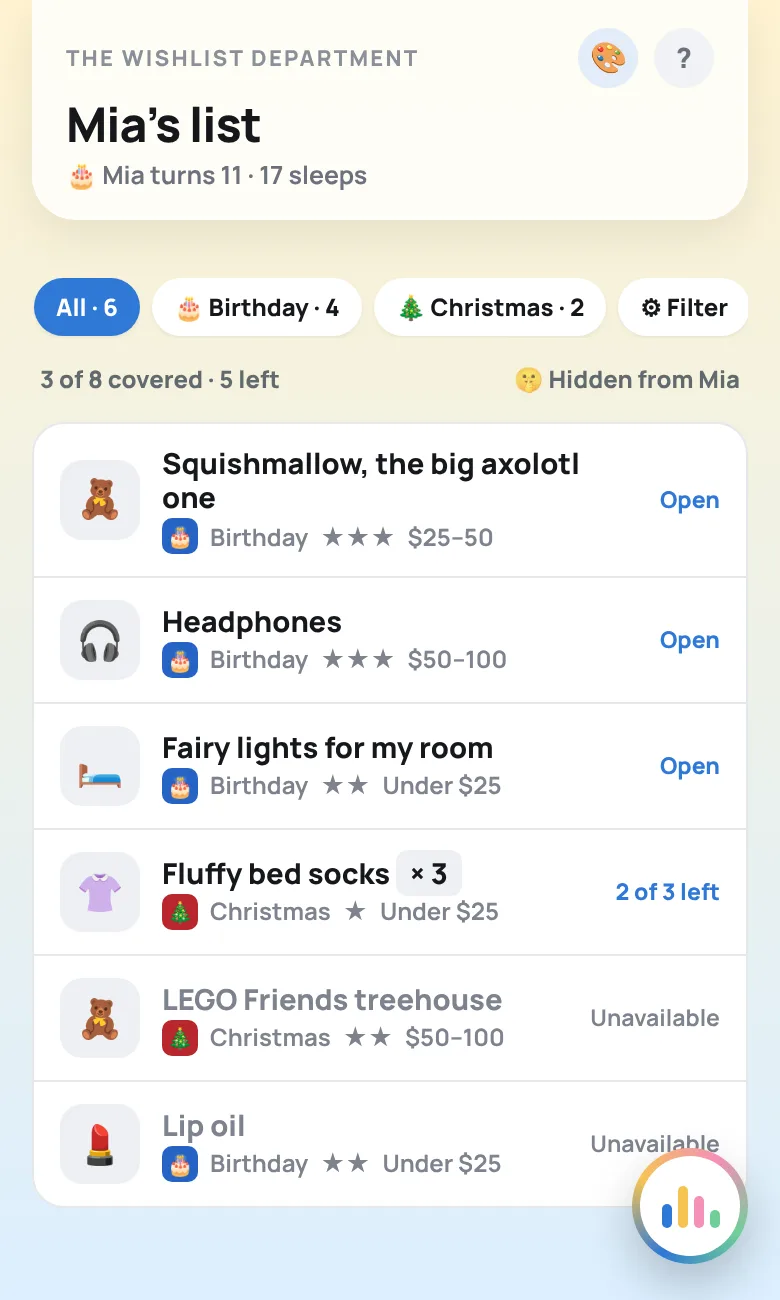
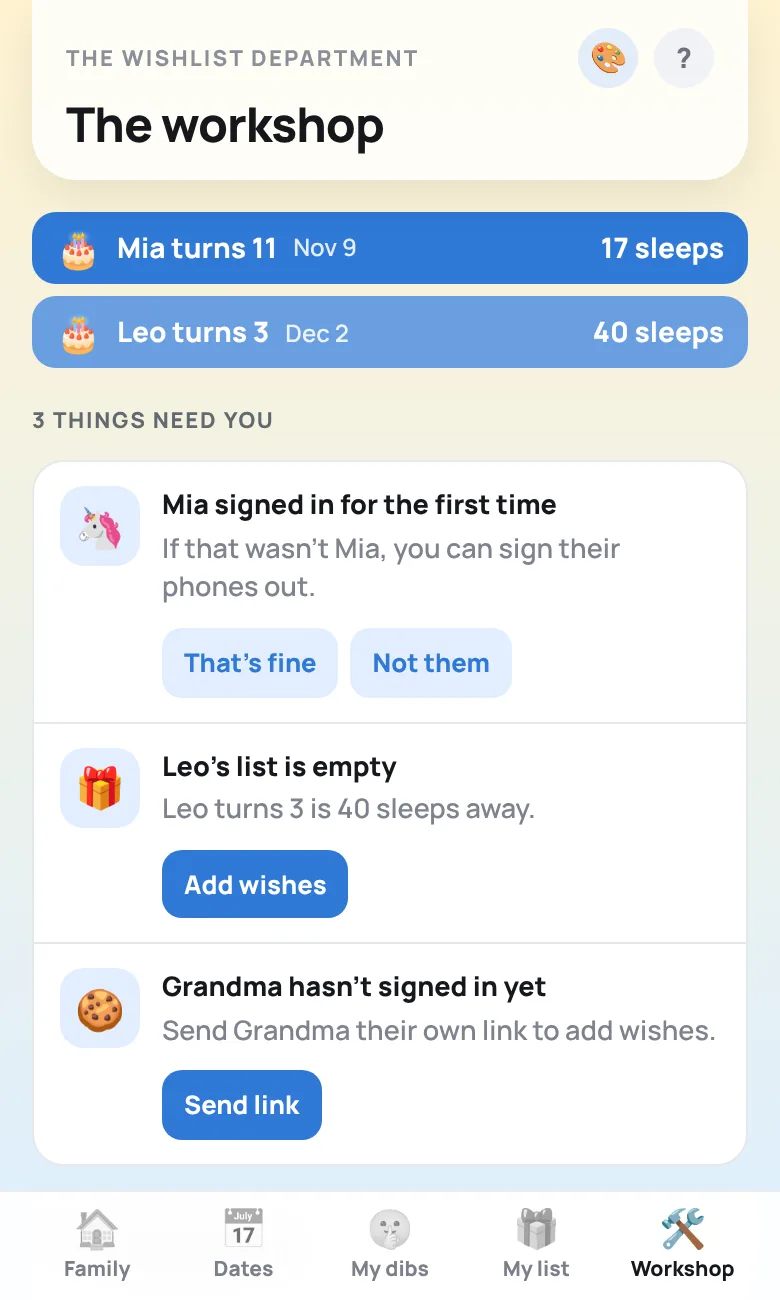
A guest link for Mia's list: each wish in a row, with taken ones marked Unavailable
A guest link
↑ Which link did you get?

For the organizer

Setting it up (about five minutes)

The workshop is the back room where you set everything up. Only you can open it.

  1. Open your workshop

    After you pay, or after you open a gift link and type your family’s name and email, your workshop opens. We email you its link too, so bookmark it or keep that email.

  2. Pick an organizer code

    This is the password for the workshop. Keep it to yourself.

  3. Add your people

    The workshop walks you through the first steps. Tap + Add a person and add kids and grown-ups, each with a name and an emoji. A first name or a nickname is plenty. Add birthdays if you’d like countdowns, and include the year so it says “Mia turns 8.” The year also matters for little ones: kids under 16 are never asked to split a gift, and anyone under 5 counts as parent-run, so a parent’s device never gets mistaken for the baby.

  4. Fill in the family calendar

    Open Calendar and Secret Santa. Everything coming up is in one list, birthdays included. Tap the holidays you celebrate to switch them on. Family split across countries? Switch on both Father’s Days. Then add your own dates, like an anniversary, a baby shower or a graduation. Pick a theme for each one and tick Repeats every year for the yearly ones.

  5. Share the links

    The family link is at the top of the workshop. Tap 📤 Send to the family to open your phone’s share sheet with a message ready to go, or Copy to paste it yourself. Anyone who hasn’t signed in yet has a Send link button next to their name.

    👨‍👩‍👧 The family linkOne link for everyone. Send it to the group chat. Each person taps their name and picks a code, so you don’t need to send anything else.
    🎁 Each “My list” linkOptional. Send one privately if someone would rather skip the name picker. For a baby or a little kid, keep their link yourself and add their wishes for them.

    Each person also has a guest link for people outside the family, like on a baby shower invite. Tap the person, then A friend wants to buy for… Guests see only that one list and can call dibs, but they can’t see the rest of the family’s lists.

The workshop: countdown strips, a list of things that need you, the family link, and each person with whether they’ve signed in and how many wishes they have
The workshop

🛠️ Getting back to the workshop

On any device where you’ve typed your organizer code, there’s a Workshop tab along the bottom of the screen. Nobody else sees it.

📱 Who signed in

Each time someone picks their name on the family link, a card on your family page tells you. It shows in the workshop too. If it wasn’t them, tap Not them, then Someone else is signed in as…. Their devices sign out and they can pick their name again.

🔓 Releasing dibs

Someone can’t undo a dib, maybe because they lost their phone and haven’t signed in anywhere else? Open the list with that wish. The organizer sees Release dibs (or Remove a name from a group gift) under any claimed wish.

👀 Who’s visited

Each person’s row in the workshop says when they were last here, and Look and settings shows who’s been looking and when: anyone who opened their own “My list” link on that device, called dibs, or said who they are on a guest link. Visits to an under-5’s list show as “A parent looked at…”.

📦 Not received

If a gift on the gifted shelf never showed up, tap Not received on the family page and it goes back on the list. The person the list is for never sees this.

🎅 Secret Santa

Open Secret Santa, tick who’s in (leave the little ones out), add a budget and draw names. Each person sees only their own pick, on their “My list” page.

⚙️ Settings

Rename your department, update your card or yearly renewal on the billing page, or close the department for good.

✨ Decorations

Pick one look for the whole family, or leave it on Automatic so it follows the next occasion. You can also tap 🎨 at the top of any page. Anyone who picks their own look keeps it.

🔒 Who sees what

The family link shows every list and who called dibs, except on your own list, where you never see any. A “My list” link shows only that person’s wishes, never the dibs. A guest link shows one list and which gifts are taken, but not who took them. Nothing is public or on search engines, so only people you send a link to can get in.

↑ Which link did you get?

What’s in the department

Every feature, in one place

🙋 Call dibs

Tap it on anything you’re buying. Everyone else sees it’s covered, so nobody doubles up.

🙈 No spoilers

Nobody ever sees whether anyone called dibs, split or chipped in on their own list, not even on the family link. Their list looks exactly the same either way.

📅 Countdowns

The next two occasions sit at the top of the family page, birthdays included (“Mia turns 8”). Each list shows that person’s next one under their name.

🏷️ Wishes for an occasion

Every wish is for an occasion: your birthday unless you pick Christmas or another date. Family see it next to each wish, and once that day passes, anything someone called dibs on moves to the gifted shelf.

🎁 Gifted shelf

After the occasion, wishes someone bought move to the gifted shelf, so the list only shows what’s still wanted.

💌 Thank-you list

On your “My list” page, gifts you’ve been given show up with who they were from. Tick each person off as you thank them, or tap Say thanks for a ready-to-send message. Givers see a little “said thanks” note.

💲 Price ranges

Give a wish a rough price range, and givers can filter a list by budget with Filter.

🤝 Group gifts

Tap Split it with someone on a wish to go in on a big wish together and invite the grown-ups you want. Invites show up as a card on the family page.

💬 Group chat

A private chat for everyone chipping in, with live messages and “typing…”. A card on the family page shows anything new. The person the gift is for never sees it.

🎅 Secret Santa

The organizer ticks who’s in, sets a budget and draws names. Each person sees only their own pick, privately.

🔗 Guest links

Share one person’s list outside the family, like on a baby shower invite. Guests can call dibs but can’t see the rest of the family.

🎨 Decorations

Themes for every occasion, nine just-for-fun ones, and falling snow, hearts or balloons. Everyone can decorate their own list, and the look you pick follows you there.

✍️ Guestbook

Every list has a guestbook. Family sign it with an emoji and a note, and the person whose list it is sees who stopped by.

🤫 My Dibs

The My Dibs tab on the family page shows everything you’ve called dibs on or are chipping in on, from every list, with a link to buy it. Tap Mark bought to tick things off. Only you see it, and once you’ve told a device who you are, your dibs follow you to your other devices.

🔒 Signed in, or nothing

Everyone gets in from the one family link with their name and a personal code. Until you sign in, the link shows no names, lists or dibs.

⚠️ Heads-ups for buyers

If a wish you called dibs on is taken off the list or changed, you’ll see a note on it, so you’re not caught out.

🟢 Here now

A green dot on someone’s card means they’ve had their list open in the last few minutes.

👀 Who’s visited

The organizer can see who’s been looking and when, plus a visit count on the family page.

🌏 Family in two countries

Date boxes use each device’s own format (day first or month first), and you can switch on Father’s Day for both Australia and the US.

↑ Which link did you get?

Stuck?

Questions at the counter

I lost my link

Organizers: go to thewishlistdepartment.app/lists/find and type the email you used, and we’ll send your workshop link again. Forgot your organizer code? Tap Forgot your code? under the code box. The email we send has a link to pick a new one. Everyone else: open the family link and sign in with your name and code. Forgot your code? Ask your organizer to reset it. They can copy your link from the workshop any time.

A link ended up in the wrong place

The organizer can tap that person in the workshop and pick The link went to the wrong person (or Someone else is signed in as…), or Make a new guest link. The old one stops working, and their wishes stay put.

Can someone join later?

Yes. The organizer adds them in the workshop, and they tap their name on the family link. They show up on the family link straight away.

Do I need an app or an account?

No. Every link opens in the browser on any phone, tablet or computer.

Still confused? Email hello@thewishlistdepartment.app and a real person will help.